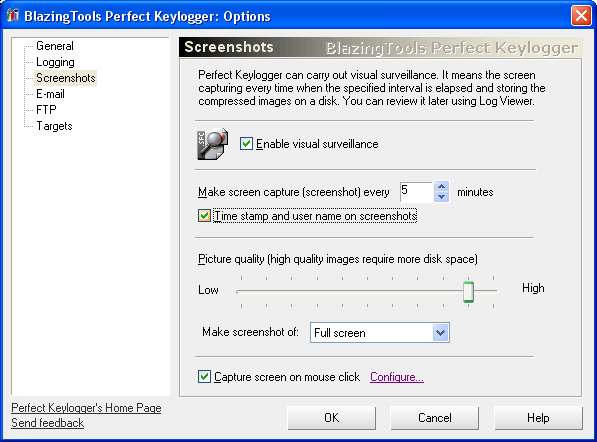
Enable visual
surveillance - enables making screen captures after the specified amount of time.
Make screen capture (screenshot) every X minutes - specify the pause between saving of screenshots.
Time stamp and user name on screenshots - if checked, keylogger will print computer name, user name, current date and time at the top right corner of every screenshot.
Picture quality - set desired picture quality here. Remeber that high quality images require more disk space.
Make screenshot of (full screen, active window) - lets you to select desired screenshot size. Select Active Window if you plan to send screenshots by e-mail - it will decrease message size.
Capture screen on mouse click - lets you to capture screen area around mouse cursor on every mouse click. Select Configure to set desired screenshot size and specify window titles where you want to record screen information.
If the keyboard and mouse have not been used for more than 5 minutes, the screenshot will be not saved to avoid saving duplicate images.
| Created by chm2web html help conversion utility. |